One day my Mac had 2,750 orphaned processes piled up — the kind neither Activity Monitor nor the memory warning ever points at. Paws finds those and cleans them up. Sessions you're working in stay untouched.
When a Mac slows down we go looking for the heaviest app. On a Mac running several AI tools, the culprit isn’t at the top of the list — it isn’t in the list at all.
The heavy work finished long ago, and the fan is still spinning.
Only a few windows are open, yet scrolling feels sticky and switching apps lags.
“Your system has run out of application memory.” You quit the app it named, and minutes later it’s back.
You open Activity Monitor, see hundreds of rows, and have no idea where to start.
When these four arrive together, it’s usually not one big app but hundreds of small processes piling up. Each one is harmless on its own — which is exactly why neither the warning nor Activity Monitor can point at them.
Both were innocent. They were quit as instructed; the warning came back minutes later.
This was the culprit. Their parents died, launchd adopted them, and they piled up quietly for 55 days.
Not in one line. Counting parentless processes on the Mac this was written on gives you this:
All ~800 of them have “no parent”, and the number worth cleaning up is zero. Spotify, Notion, Safari’s tabs and dozens of Apple’s audio helpers all have launchd as their parent too. Having no parent isn’t evidence of being orphaned — it’s just an absence of information. Telling real orphans apart from processes that are doing their job — that is what Paws does.
Plenty of tools show you how much memory something uses. Paws goes further and decides which of them lost its owner.
A process left behind when its parent died. It becomes a candidate only once three or more of the same command have piled up. A lone one is left alone.
Something no terminal is holding that still eats a lot of memory. Paws never ends it on its own; it only lists it.
The ring in the menu bar says the state in color. Grey when calm, orange on warning, red on danger. A graph shows how it got there.
What to keep is the harder question, not what to remove. Paws narrows that judgment in four steps, and stops at any step where it isn’t sure.
Memory pressure and swap every 5 seconds, the process list every 15. All you see is one ring in the menu bar.
NO EFFECT ON YOUR WORKPaws stays under 100 MB. It remembers the last 15 minutes and drops the rest.
It asks “is a session holding this?”, not “is this busy?”. It reads the group the kernel put in front of the terminal (e_tpgid), and protection spreads upward to the parent.
NO EFFECT ON YOUR WORKWhatever the terminal holds, and everything beneath it, is protected — including an AI session sitting at 0% CPU waiting for input.
Only commands stacked three deep or more become candidates. Apple’s XPC services and app extensions are never candidates at all.
NO EFFECT ON YOUR WORKA lone process may simply be working. When it isn’t sure, it doesn’t list it.
It opens the record window, shows you what is about to end and asks again. For processes no session holds, the list opens with nothing ticked at all. What was ended, when and why is kept for a year.
NO EFFECT ON YOUR WORKAutomatic cleanup is off by default. Even switched on, it only touches orphans that passed step 03.
The first version treated “not in launchctl’s list” as proof of being orphaned. On that rule it ended 108 healthy Apple XPC services — Safari’s web content processes among them.
It shipped with all 100 synthetic tests passing. Absence from the list was an absence of information, not evidence, and testing against fake processes could never have revealed that.
Now a test on a real machine — “on a healthy Mac, is the automatic cleanup set empty?” — runs on every build. The rules have grown to six since that day, and every one of them defaults to doing nothing when unsure.
Every shot below was taken on the Mac this was written on, or printed straight from the code the app draws its icon with. Nothing redrawn, no numbers dressed up.
Day to day, one paw is all you see. Turn on the readout in settings if you want numbers.
The ring around it carries the memory state.
Quiet normally, coloured when it matters.

Readout off (default)
Readout on
Normal
Warning
Critical
Paused
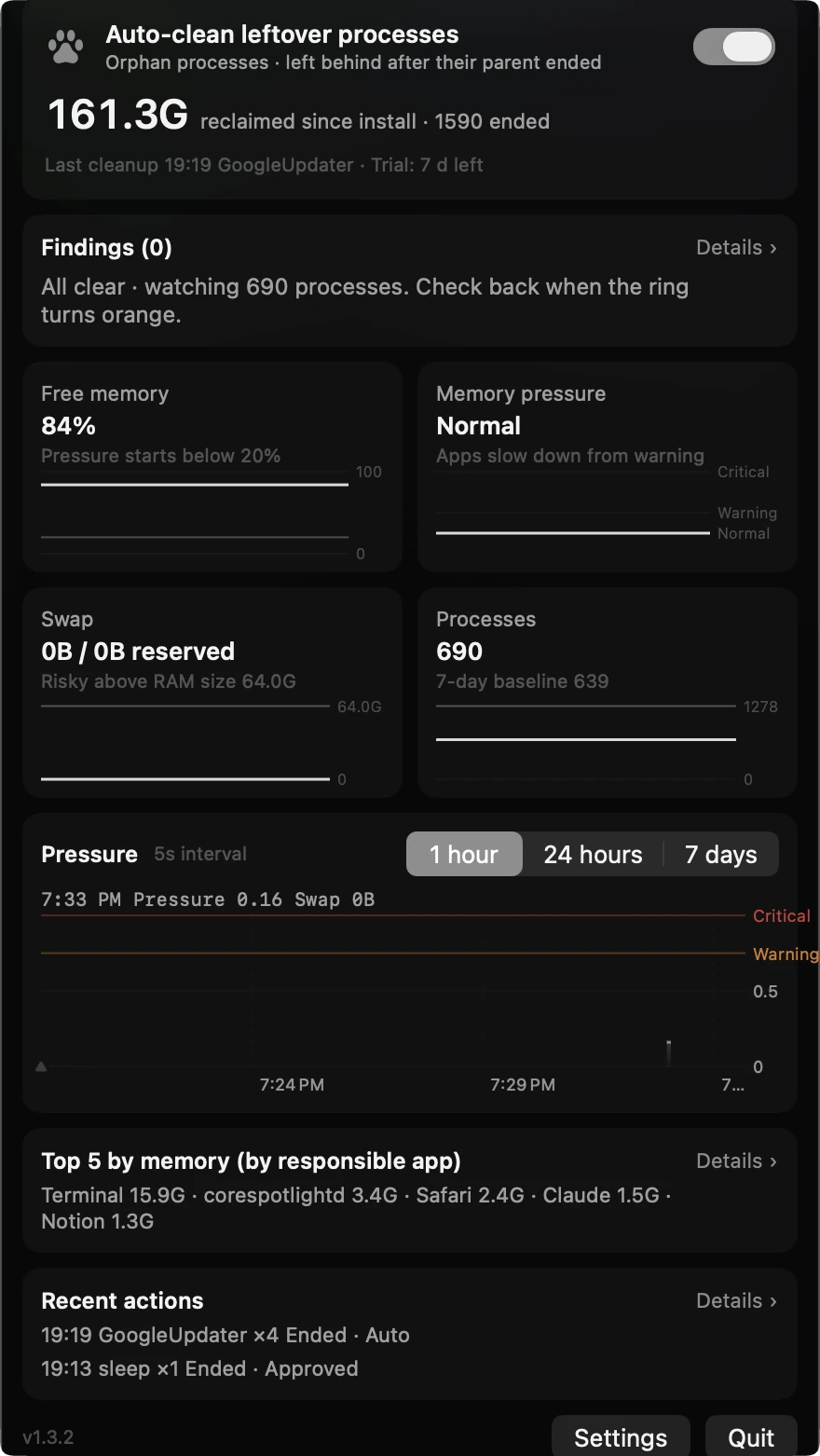
CleaningThe whole state fits on one panel, nothing to scroll — reclaimed so far, what it found, free memory and swap, process count, the pressure graph, the last action, and settings and quit at the bottom.
This Mac has taken back 161.3 GB since install,
across 1,590 processes.
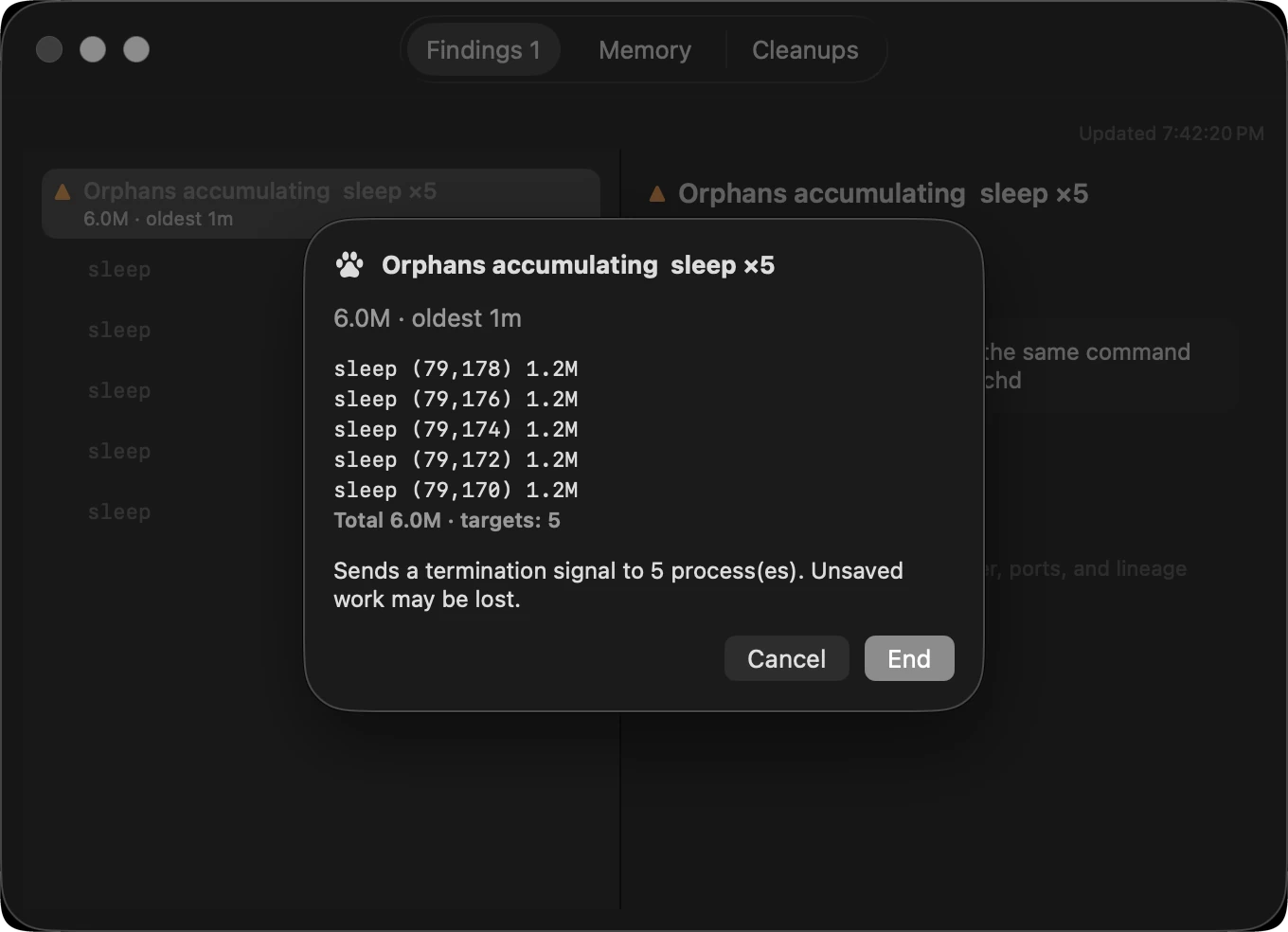
Press clean up and the record window opens, lists exactly what is about to end, and asks again. Only what you pick ends.
“Unsaved work may be lost.”
It says that before it ends anything.
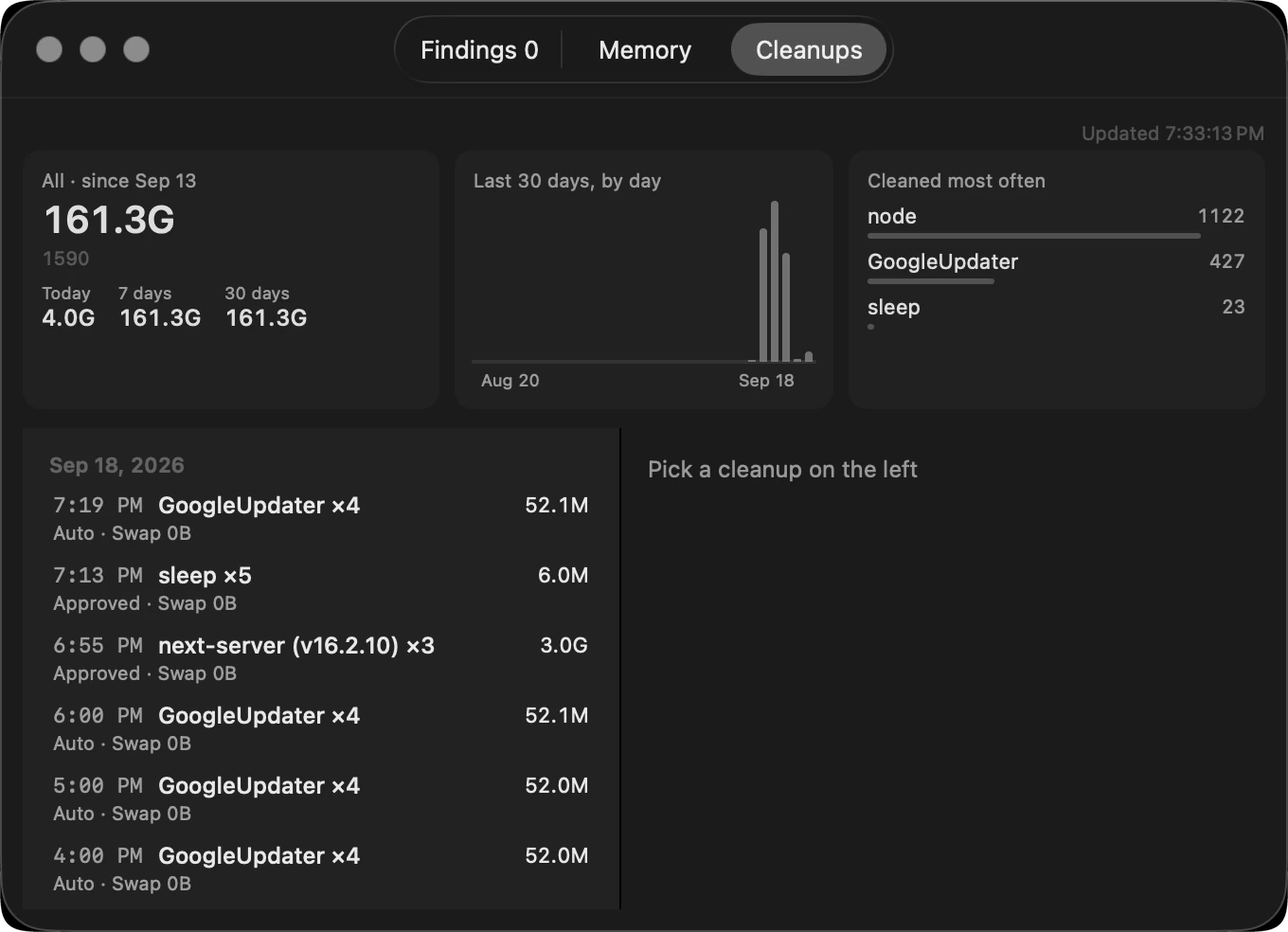
Everything ended stays on the record — by date, how many of what, and how much came back. Kept for a year.
Cleaned up most — 1,122 node,
427 GoogleUpdater.
Captured 18 September 2026 with Paws 1.3.2 on macOS 26, a Mac Studio (M4 Max, 64 GB). The numbers are that machine’s real values. The six menu-bar icons were printed straight from the code that draws them (PawGauge, MenuBarLabel) — a screenshot picks up the wallpaper through them and goes muddy.
What matters most in a cleanup app is not what it removes but what it leaves.
Everything hanging below it is protected too. An AI session waiting for input counts.
The cleanup list opens empty. Every process that ends is one a person picked.
No usage statistics, no crash reports. The license check is the single exception.
It asks again before ending anything, and writes down what ended, when, and why. When the call is uncertain, it does nothing.
Zero CPU doesn't mean idle.
Claude Code waiting for input uses 0 CPU. Cleanup tools that judge by CPU kill it.
Paws reads the group the kernel put in front of the terminal, e_tpgid. It asks whether a session owns it, not whether it's busy.
Everything is open for 7 days after install. After that, the ring, the graph, and the findings list stay free.